Getting Started
Installation
If Windows SmartScreen shows a warning, click "More info" → "Run anyway". Modbux isn't signed by Microsoft, but is completely safe.
On first launch: right-click the app and choose "Open", or go to System Settings → Privacy & Security → "Open Anyway".
Persistence
Everything in Modbux is persistent. When you close the app and reopen it, everything is exactly the way you left it: connections, register configurations, server setups, all of it. You don't need to save anything manually to preserve your session.
Which mode do you need?
Modbux opens with a home screen where you choose how you want to work. The choice depends on what you're trying to do:
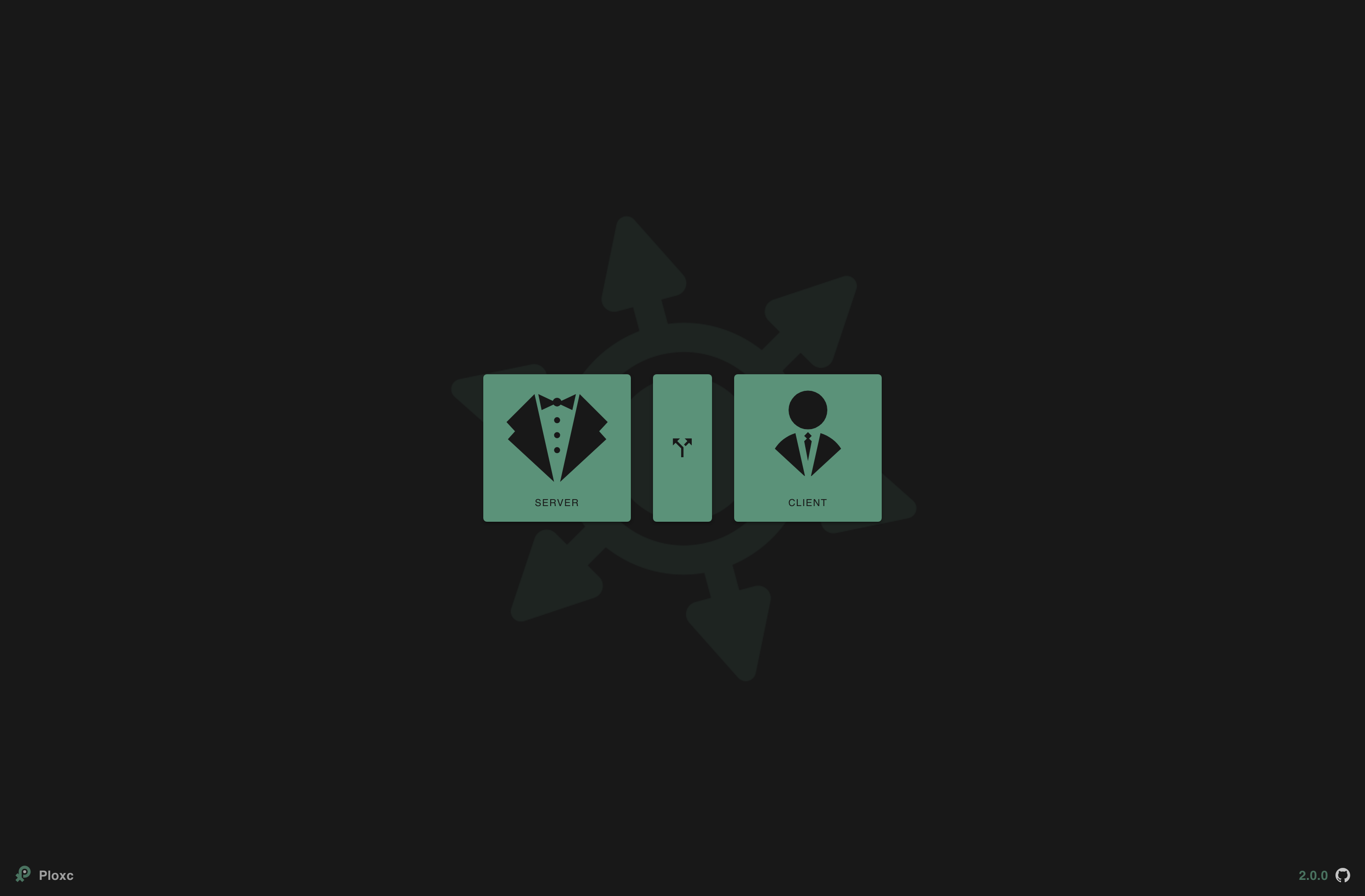
Client
You want to read, test or configure an existing Modbus device. For example: a PLC, sensor or variable frequency drive.
Server
You want to simulate a Modbus device so you can test your own software or hardware without a physical device.
Split
You want to run client and server at the same time. Useful for learning Modbus, or when you're developing both sides of a communication (e.g. PLC code and a client application) simultaneously.
Quick start
Reading a device
Click Client on the home screen.
Set up your connection: choose TCP or RTU, fill in the host (IP address or hostname) and select the correct Unit ID.
Click Connect. The button turns yellow when the connection is active.
Configure which registers you want to read (type, start address, length) and click Read.
Enable Advanced Mode (cog icon) to see all data type interpretations side by side, or set a specific data type per register to convert the raw values into meaningful numbers.
Simulating a device
Click Server on the home screen.
Choose TCP or RTU mode. For TCP: set a port. For RTU: select a COM port and serial parameters.
Choose a Unit ID for your virtual device.
Add registers, for example a few Holding Registers with test values.
Your TCP server is running immediately. For RTU, the server activates as soon as a valid serial port is selected. Connect to a TCP server from a client using the IP address of the computer running Modbux.
Client and server simultaneously
Click Split on the home screen.
A second window opens with the server. Your main window automatically becomes the client.
Configure your server with the desired registers in the server window.
Connect in the client window to localhost and start reading and writing.
Split mode is great for learning Modbus hands-on, or when you're developing both client and server logic at the same time, for example writing PLC code alongside a monitoring application.
Older versions
Looking for a specific version? All releases are available on the GitHub releases page.